Launch Aidly in minutes
Follow this simple guide to set up your AI-powered customer support workflow and start automating responses today.
Create your account
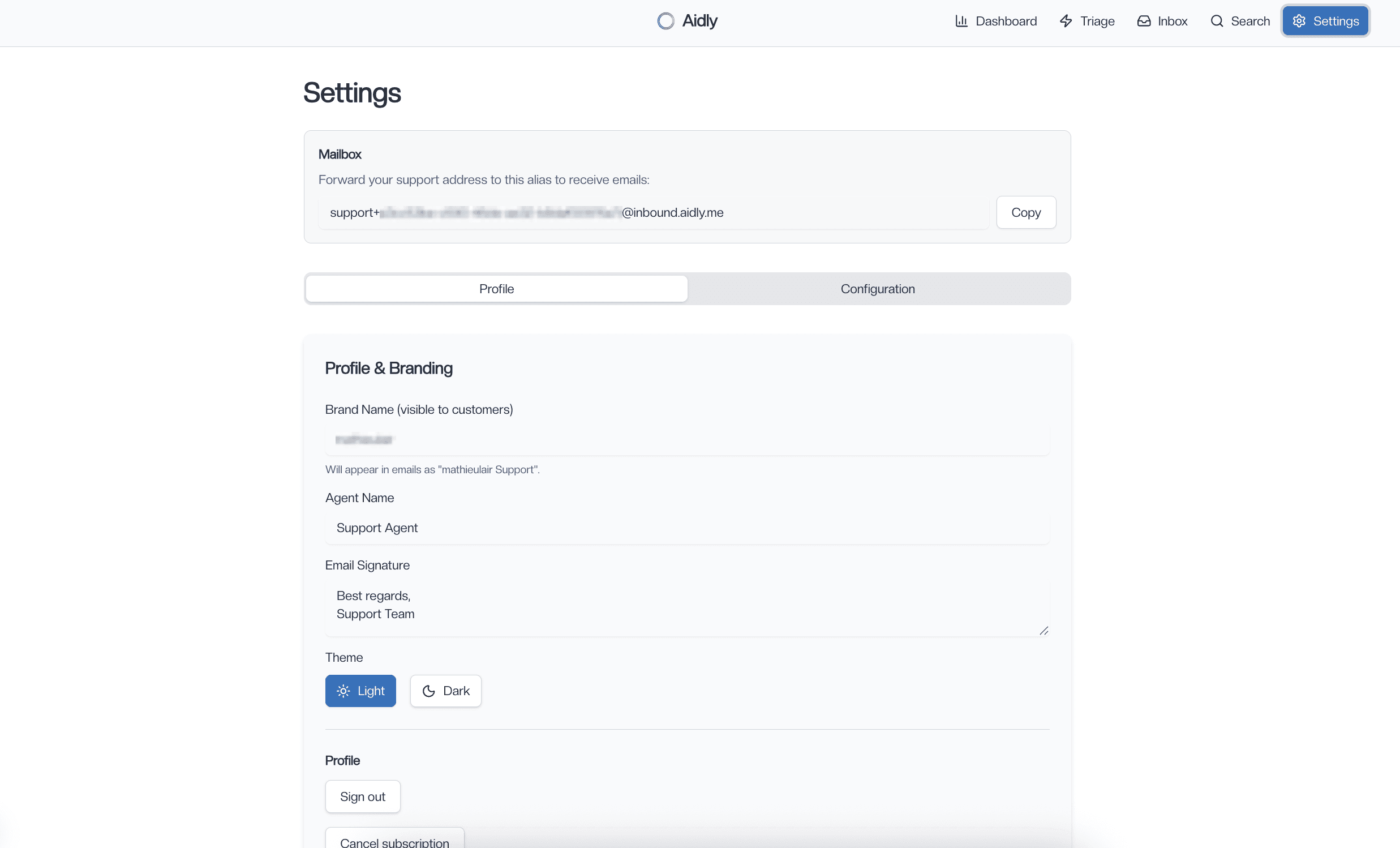
Visit the homepage and click Sign in. Enter your email to receive a magic link (no passwords required). Open the link to finish signing in.
Set up your workspace
In the settings page, name your organization and enter the name of your support agent. You can update these anytime.
Connect your AI provider
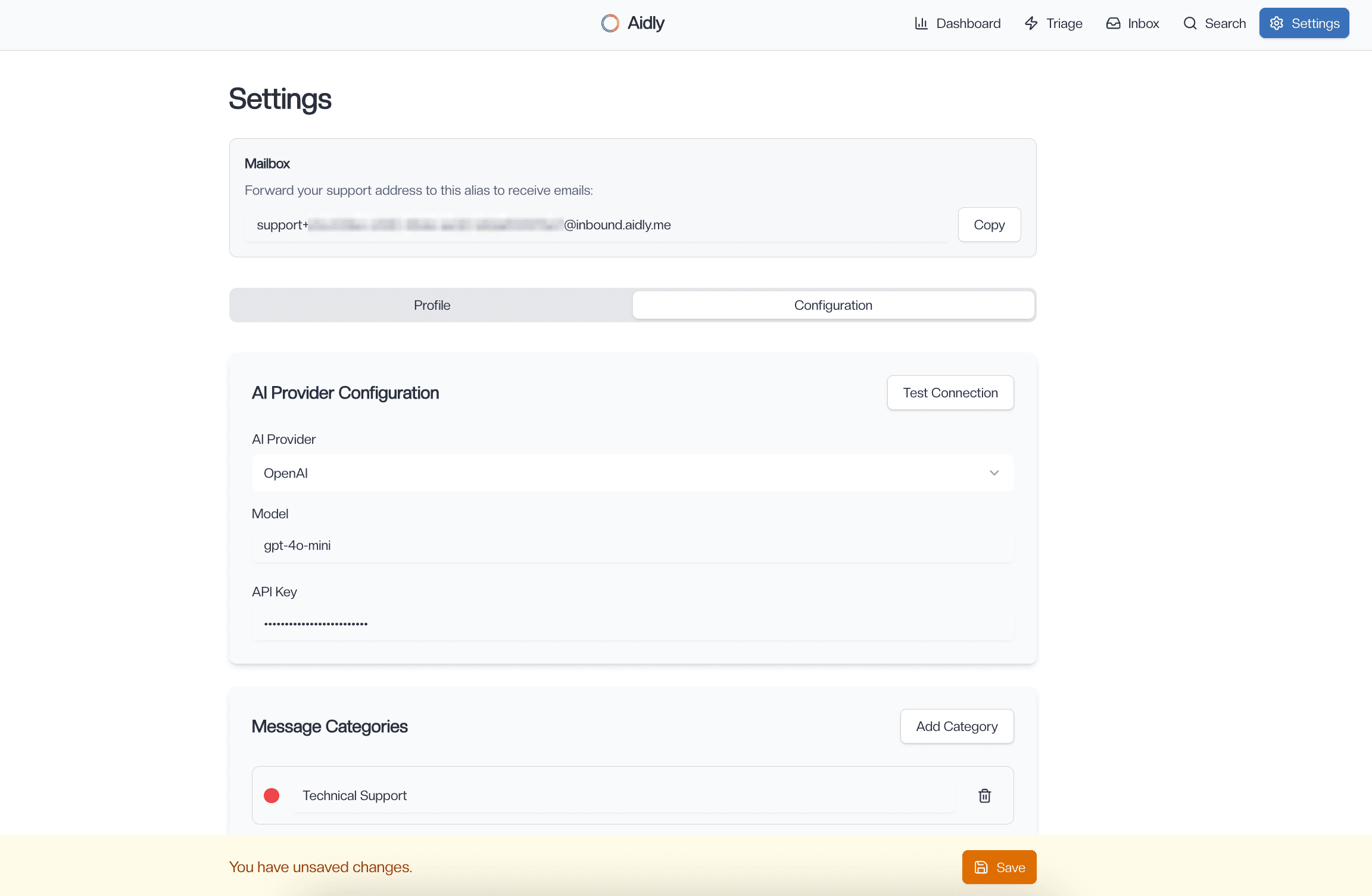
Add your API key for your preferred provider to draft and summarize replies. You remain in control—nothing is sent without approval.
- Paste your API key in Settings → AI
- Pick a default model and temperature suitable for support tone
- You can override model choices per‑category later
Define categories and SLAs
Create a few initial categories (e.g., Billing, Technical, Sales) and set response targets. Aidly uses these to triage and prioritize.
- Configure per‑category instructions, examples, and tone of voice
- Set working hours and escalation thresholds to match your policy
Add custom instructions
Provide brand guidelines, do/don't lists, product context, and links to docs so drafts follow your style and policies.
Connect your support email
Create or copy your Aidly support address, then set up a forward from your existing inbox (e.g., support@yourcompany.com). New messages will appear in the triage view.
- Keep your original address public; Aidly stays behind the scenes
- Optionally verify sending so approved replies go out from your domain
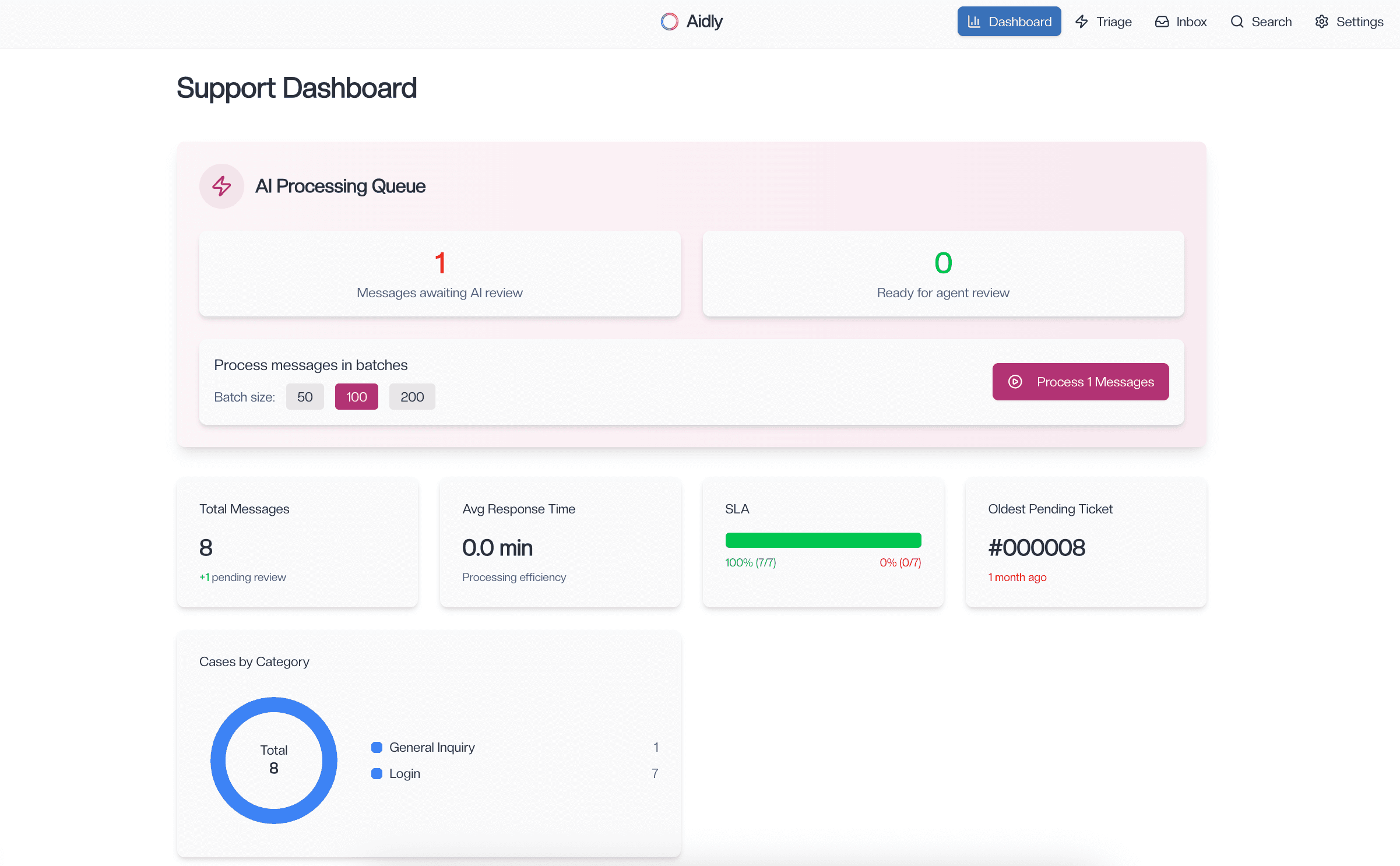
Generate the automatic replies
Enable automatic drafting to have AI propose replies as conversations arrive. You approve every send, and can adjust automation levels per category.
Triage the newly received emails
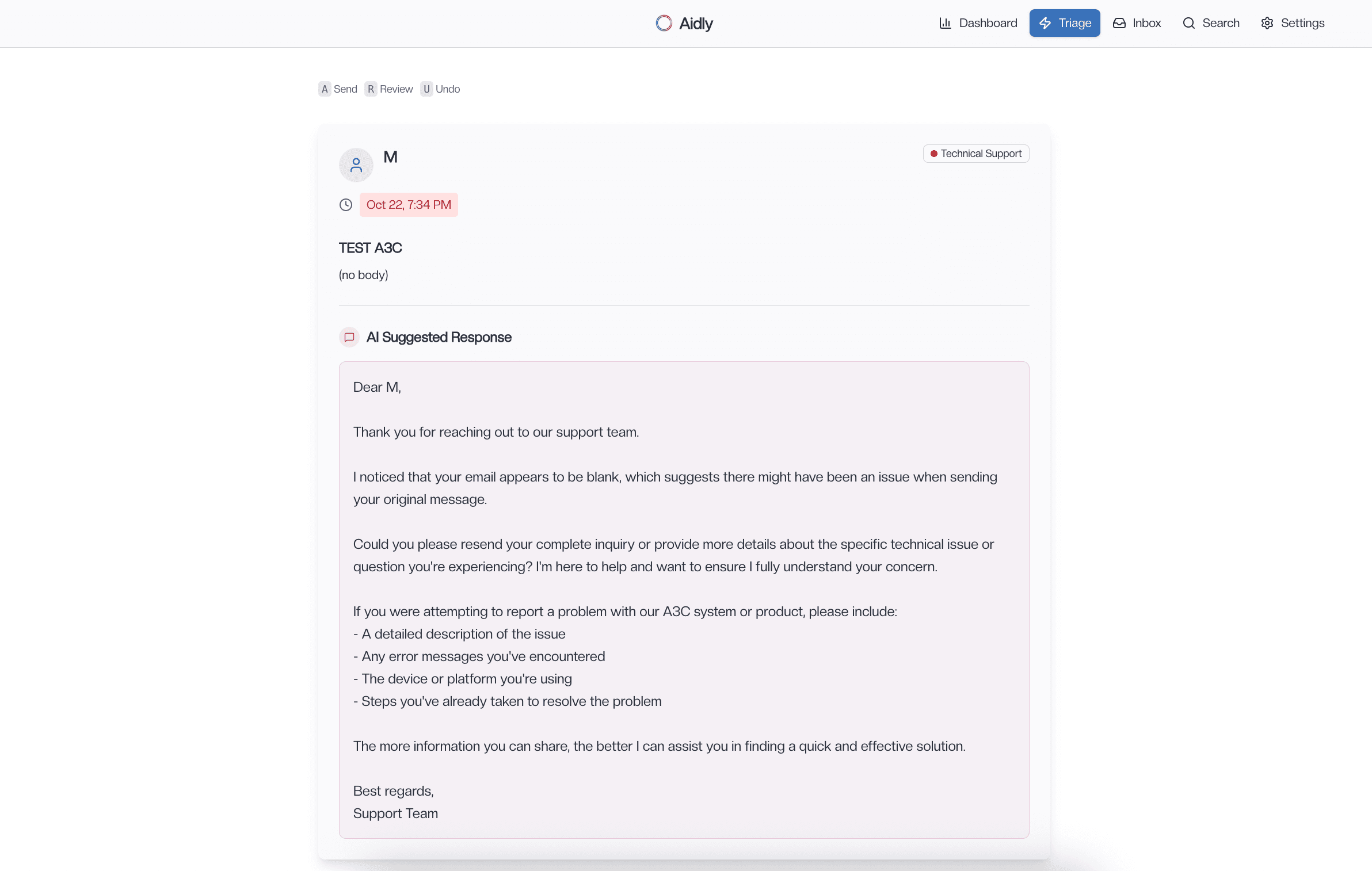
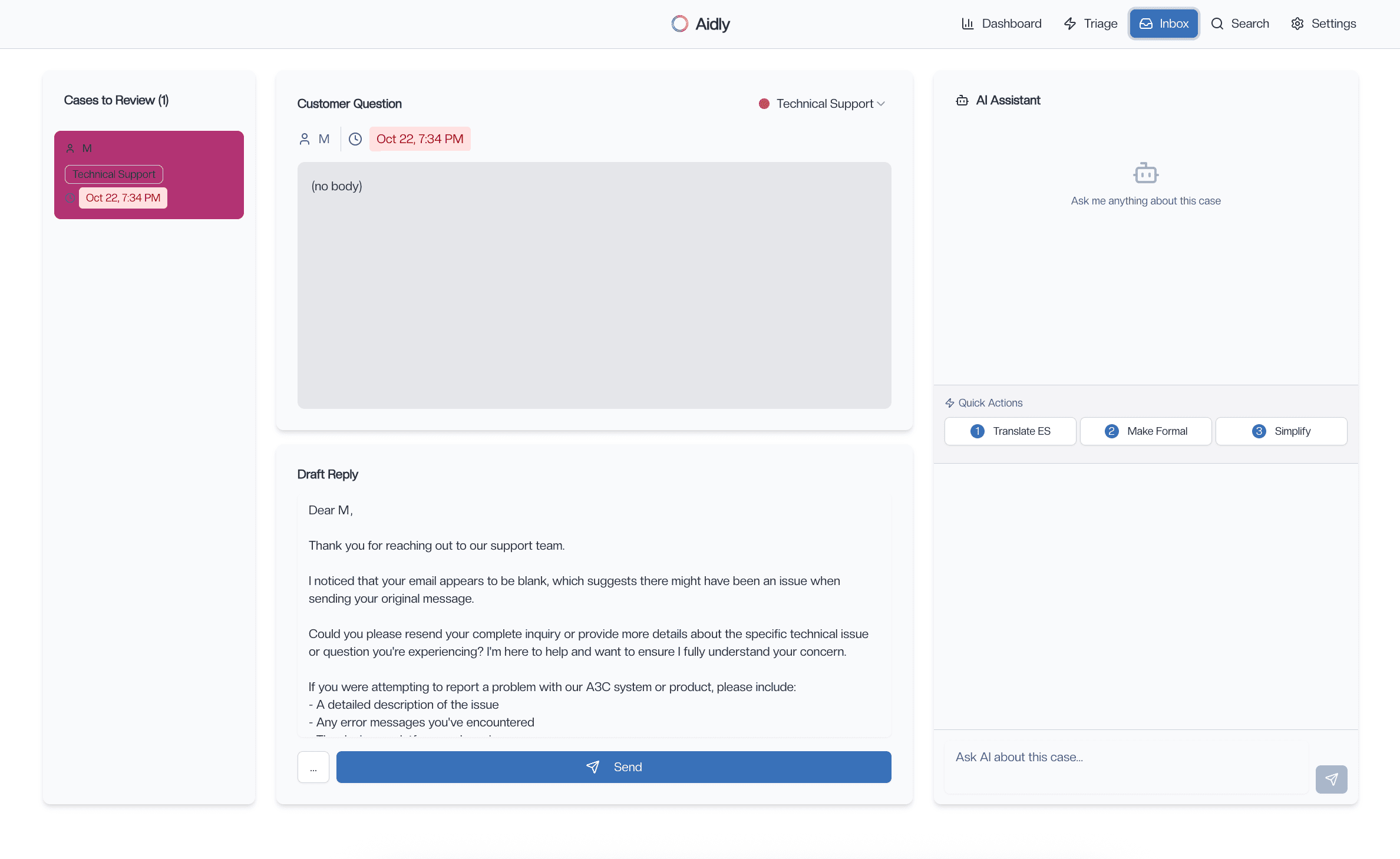
Review incoming threads, confirm categories and priorities, and apply quick actions. Open any draft to edit before approving send.
Go deeper with the review mode
Use review mode to inspect message history, suggestions, and rationale. Collaborate with teammates via notes before finalizing a response.
Pick a plan
Choose monthly or annual billing when you're ready. You can upgrade, downgrade, or cancel anytime. See Pricing.
Tips
- Keep instructions concise and example‑rich; drafts improve with context
- Use SLAs to surface urgent conversations and reduce response variance
- Start with human‑in‑the‑loop; enable more automation as quality stabilizes
Need help?
We're here to help with setup, migration, and best practices. Email support@aidly.me.